A Chrome new tab · No account · Saved on your computer
Make it yours. Make room for focus.
See what you meant to do every time you open a tab. Keep today’s to-dos, a timer, tab groups and tools you built with AI there as cards. There is no account to create, and everything stays in the browser on your computer.
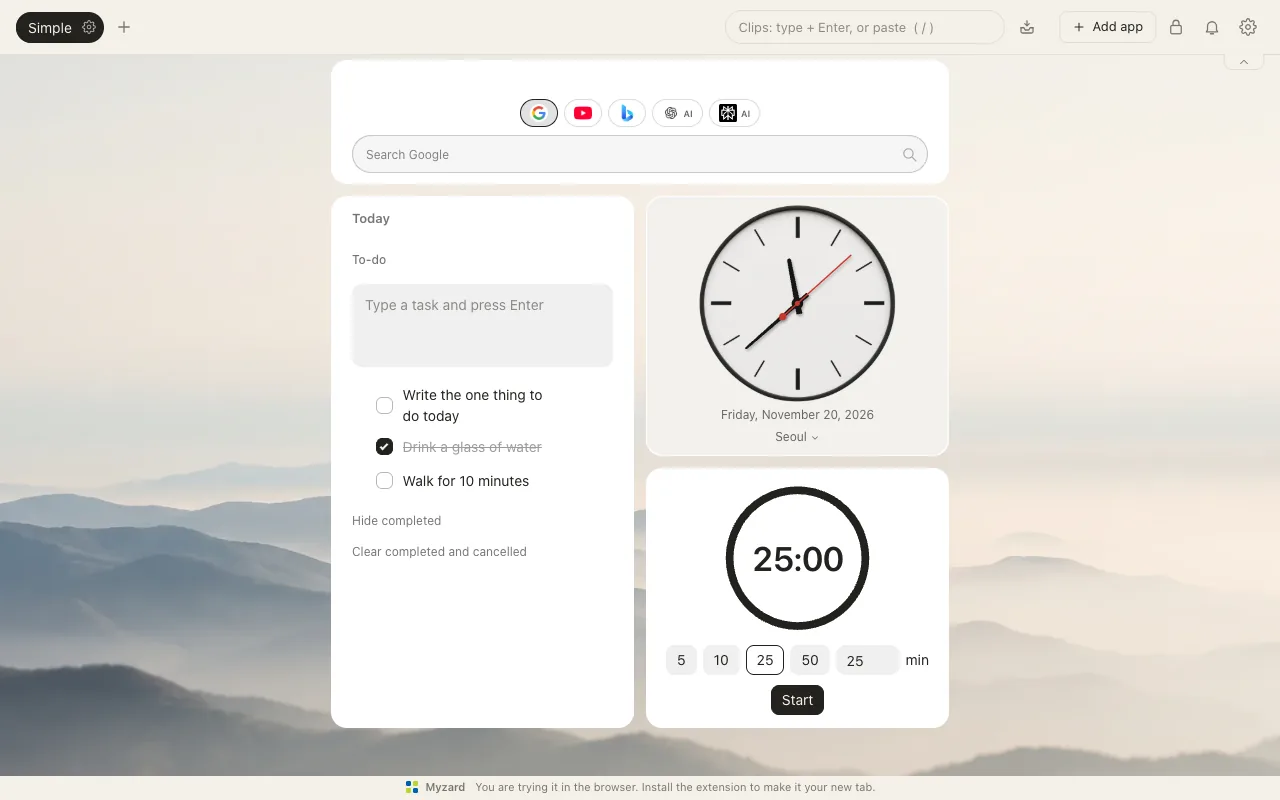
Just search, to-dos, a clock and a timer · Paper themeOnly what a new tab really needs, in the middle of the screen.
Start without an account
Saved on your computer
Works offline
Permissions only when needed
Why we made it
Opened a new tab and forgot
what you were about to do?
While working, we kept opening a new tab and losing track of what we meant to do, or typing a familiar address out of habit. So we put the thing we meant to do right there, on the new tab. That is where Myzard started. Some moments call for focus and others for a breather, so you can keep one screen for work and another for winding down.
You open a new tab and forget what you were about to do
Keep today’s to-dos on your new tab and they are the first thing you see each time.
Before you notice, you have opened the usual site out of habit
Your own screen shows up instead of a blank page. Come back to the screen for what you were doing.
You just need a timer, and it asks you to sign up first
Small tools such as to-dos, timers and notes sit on your new tab with just the core features. No account, and free.
You cannot remember where you left the tool AI built for you
Paste the HTML and it becomes a card on your new tab. No address to type again.
The genuinely useful parts
Split work your way.
Keep what you need on one screen.
Give each project its own screen, then add the sites you open together, the lesson you are watching and the tools you built with AI as cards. Whatever you add, there is no account, and your records stay on your computer.
A screen per project · My layouts
One screen per project.
Copy a layout that works.
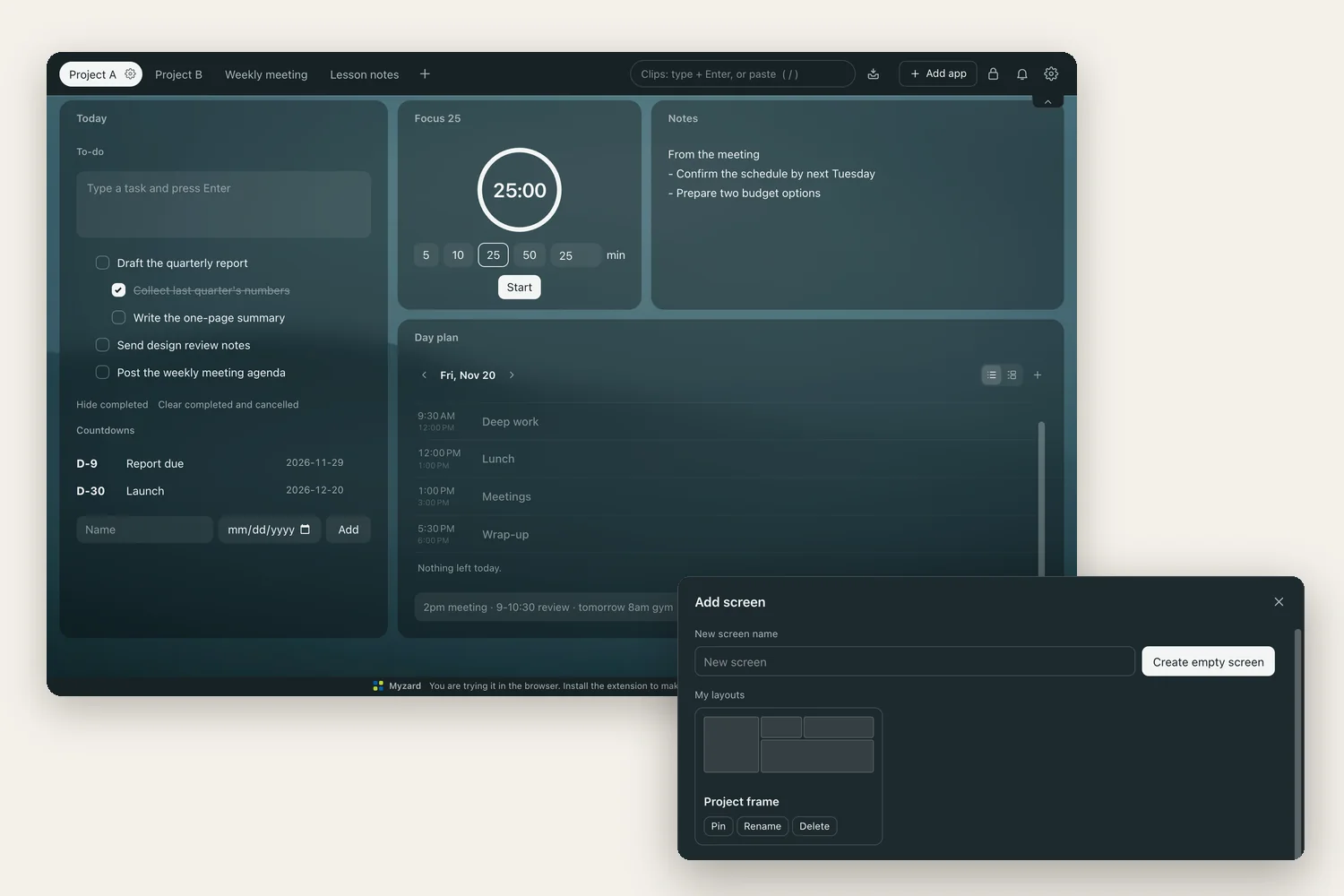
Create a screen for each project, meeting or class, and switch between them with the tabs at the top. Save a well-arranged screen to My layouts, then start the next project with the same cards, positions and settings.
My layouts keep each card’s app, position, size and settings; content such as tasks and notes starts empty. To bring content along, use Copy to another screen in the card menu in edit mode.
Tab groups · Saved together
Group the tabs you work with.
Open them all at once.
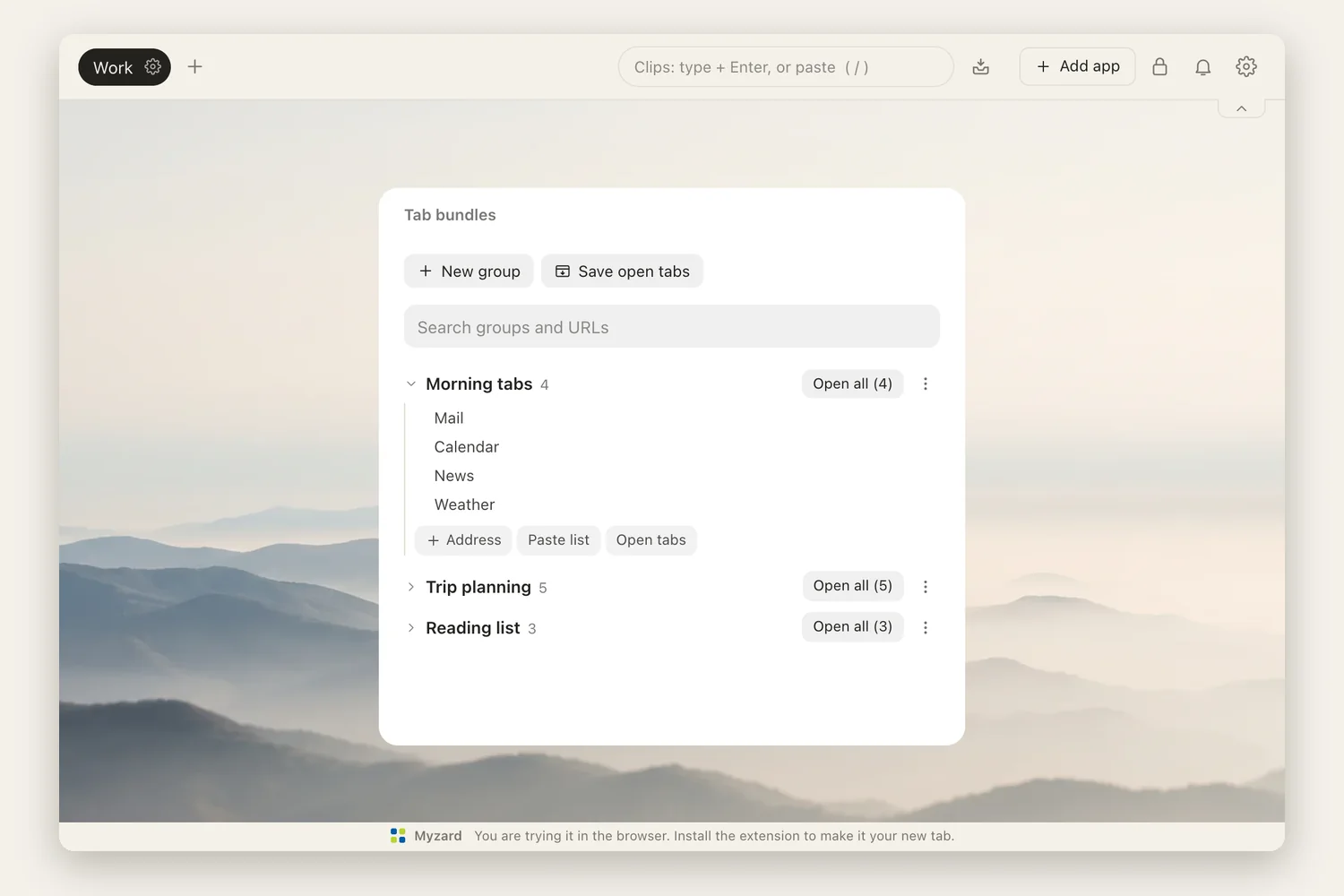
Save sites you use together, such as mail, calendars and documents, as groups by purpose. Open a whole group at once, add addresses, reorder them and clean up duplicates.
Saving the tabs you have open works in the installed extension, which asks for tab access at that point.
YouTube · Keep on top (PIP)
Keep the lesson in view.
Keep your notes beside it.
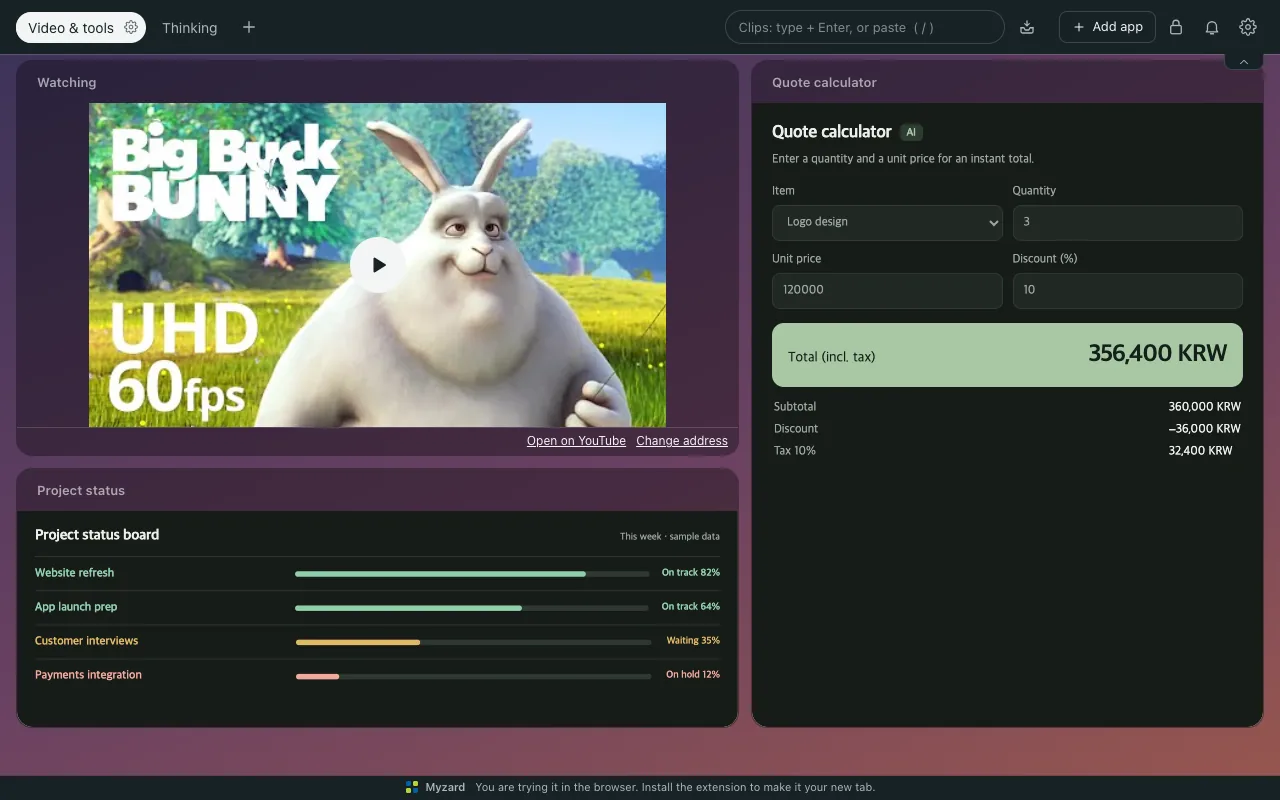
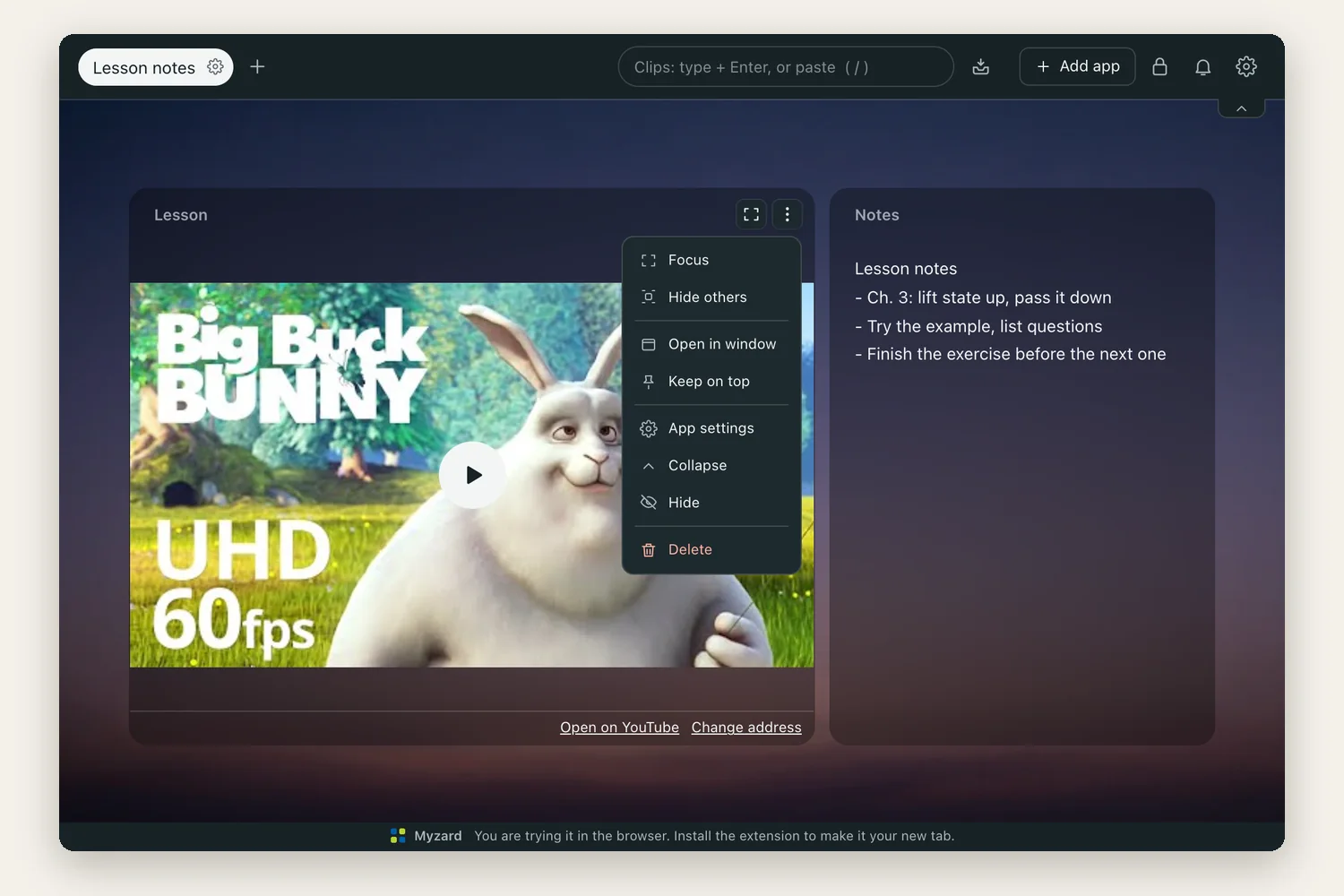
Put a lesson or music on a YouTube card and play it in your new tab. Choose Keep on top in the card menu, and the card stays above your other apps even with Chrome minimized. Notes, timers and other cards can float the same way.
YouTube playback depends on whether the video allows embedding and on YouTube policies.
Write with a note beside you, or follow a YouTube lesson while you practice. Pin a supported card above your other apps, even with the Chrome window minimized. You can also open cards in separate windows without tabs.
PIP needs a supported Chrome browser and card, and only one can be open at a time. Keep Chrome and the source tab or card window open; closing the source also closes PIP.
A project in progress
Today’s working notes
A few things to check
See the whole picture
Refine the small details
Check off the finished work
Always on top · PIP
Bring in what AI makes · HTML and Website cards
HTML and web tools made with AI,
ready to use as cards.
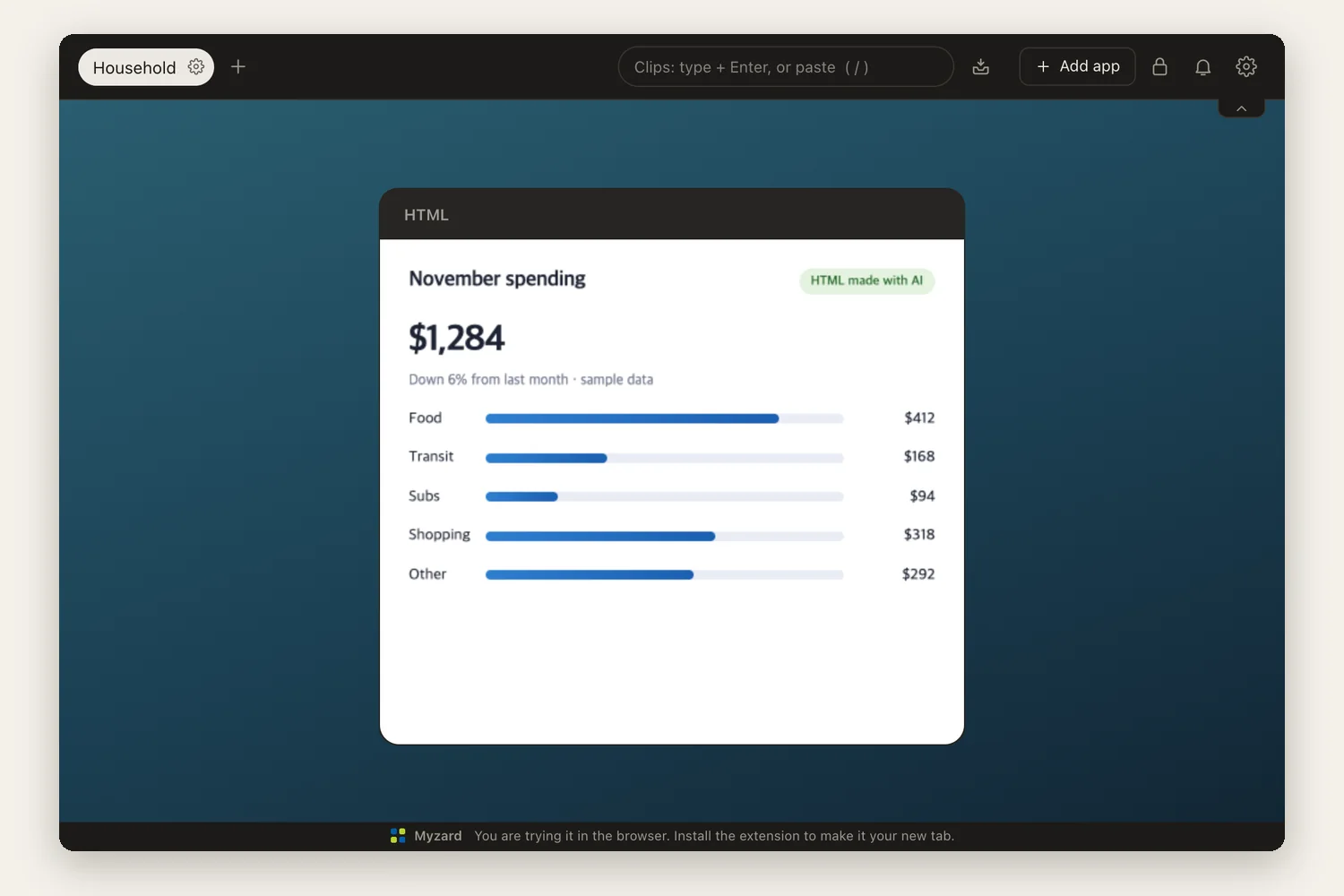
Paste HTML from an AI into an HTML card and it becomes a card. Scripts start turned off, and when you allow them they run in an isolated page that cannot reach your Myzard data. Tools with a web address go in a Website card.
External script files (CDNs) cannot load, so ask the AI for a single file with no external files. Website cards show only sites that allow embedding, and each site handles its own sign-in and data.
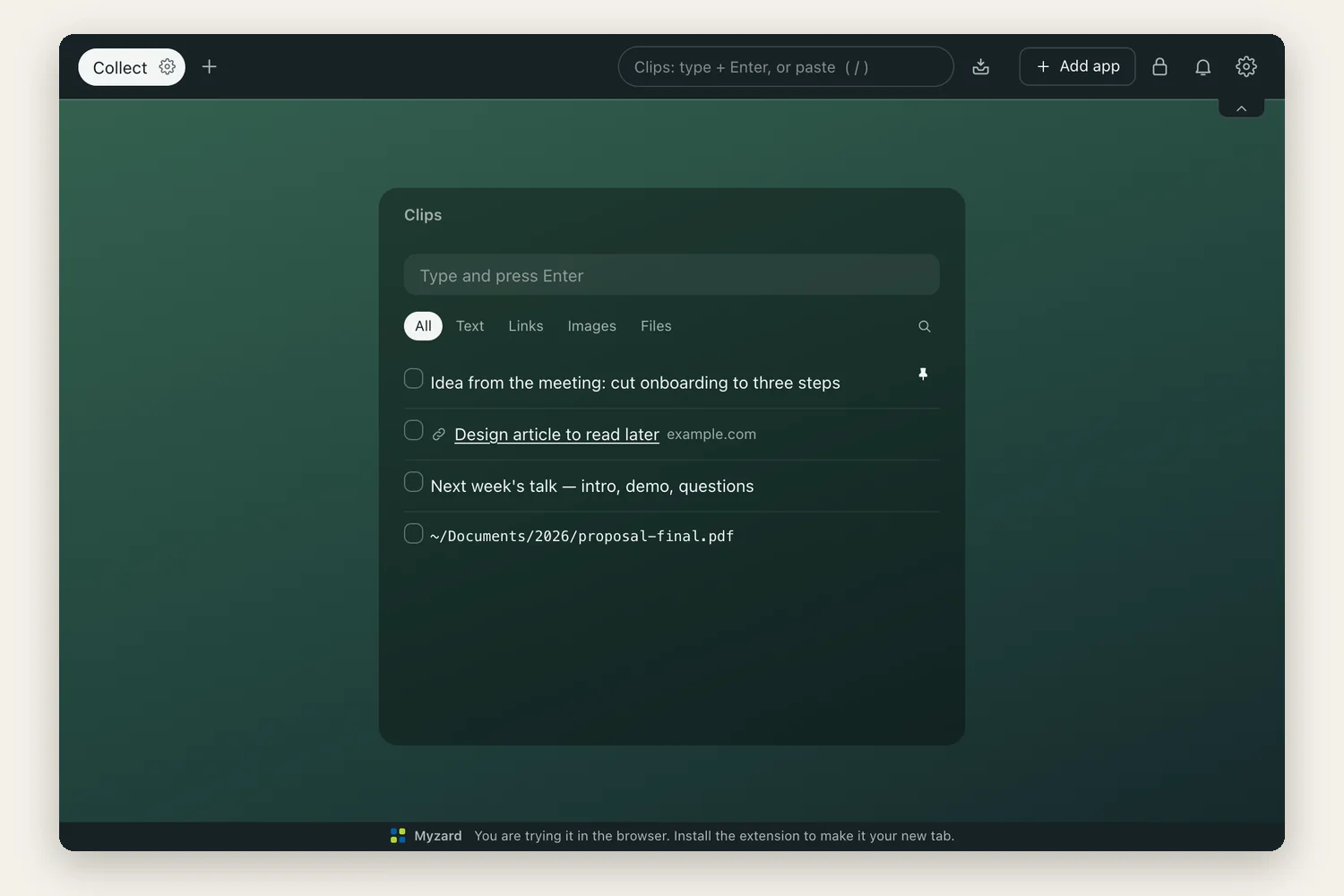
Save the page you are reading from the extension icon or a shortcut, and paste copied text, links and images straight into your new tab. Browse what you collected by type, then send what matters to a task on the Today board.
Saving the current page works in the installed extension.
Backgrounds · Images and gradients
A different backdrop
for every screen.
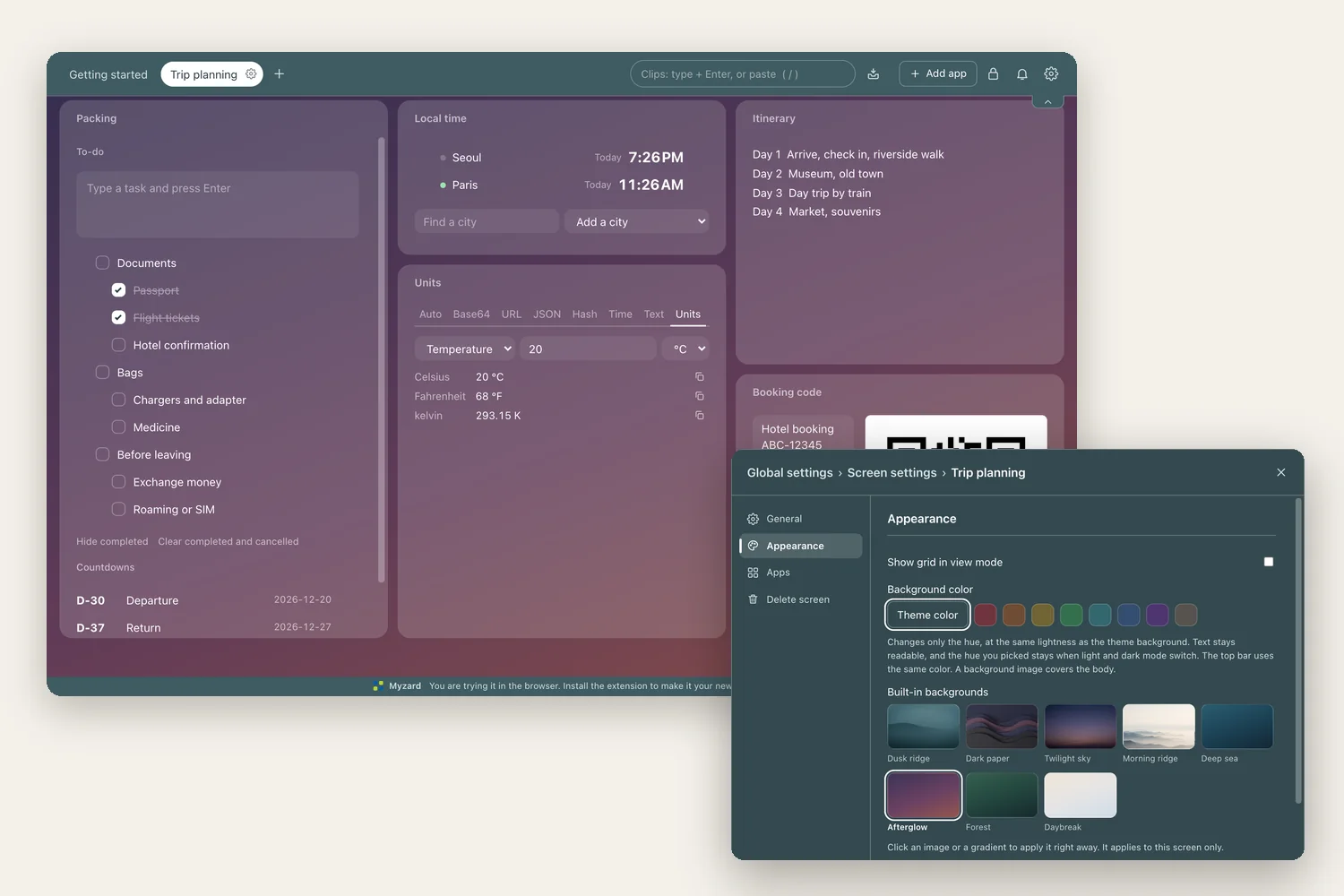
Open Screen settings and pick a built-in background under Appearance. Ridges, paper, skies and gradients are included, and you can upload your own image. Keep work screens calm and give your break screen a view.
Built-in backgrounds ship inside the extension, so they show up offline too. In the Glass theme, bright backgrounds are darkened automatically so text stays readable.
The small tools you use every day,
all in one place.
Keep them open in your new tab instead of hunting for them. Every tool here works without an internet connection.
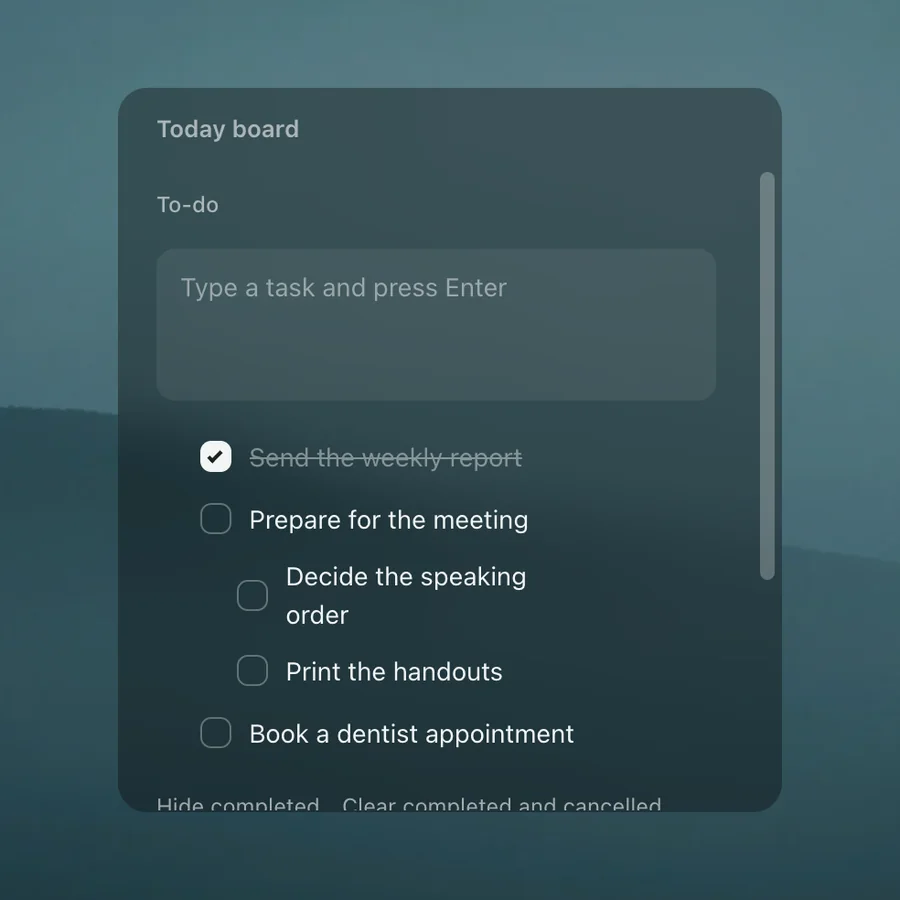
Today
Tasks, subtasks and countdowns on one card
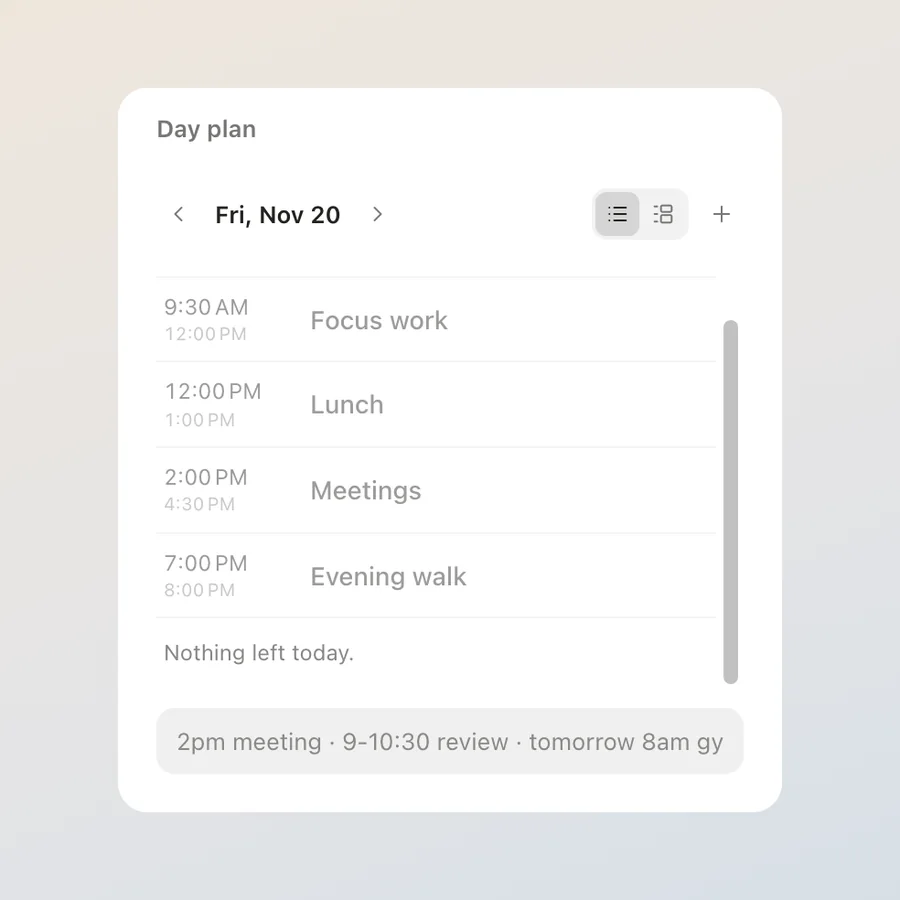
Day schedule
Type “2pm call 30m” and it becomes a plan; dated plans also show on the calendar
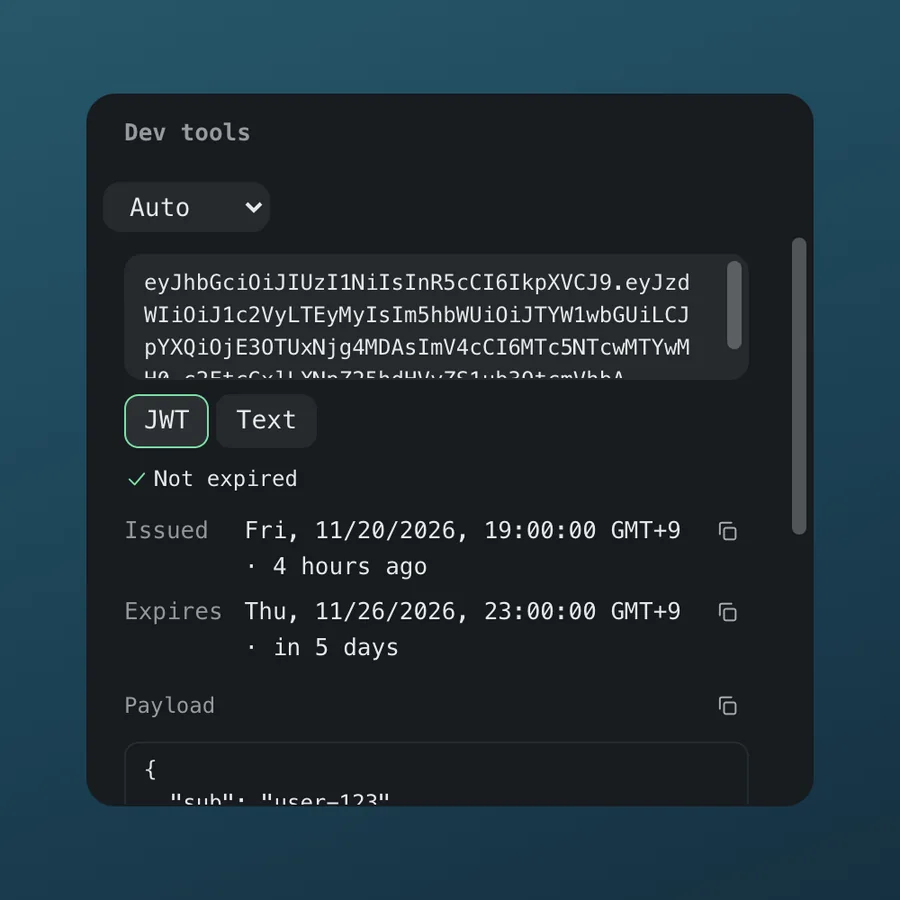
Dev tools
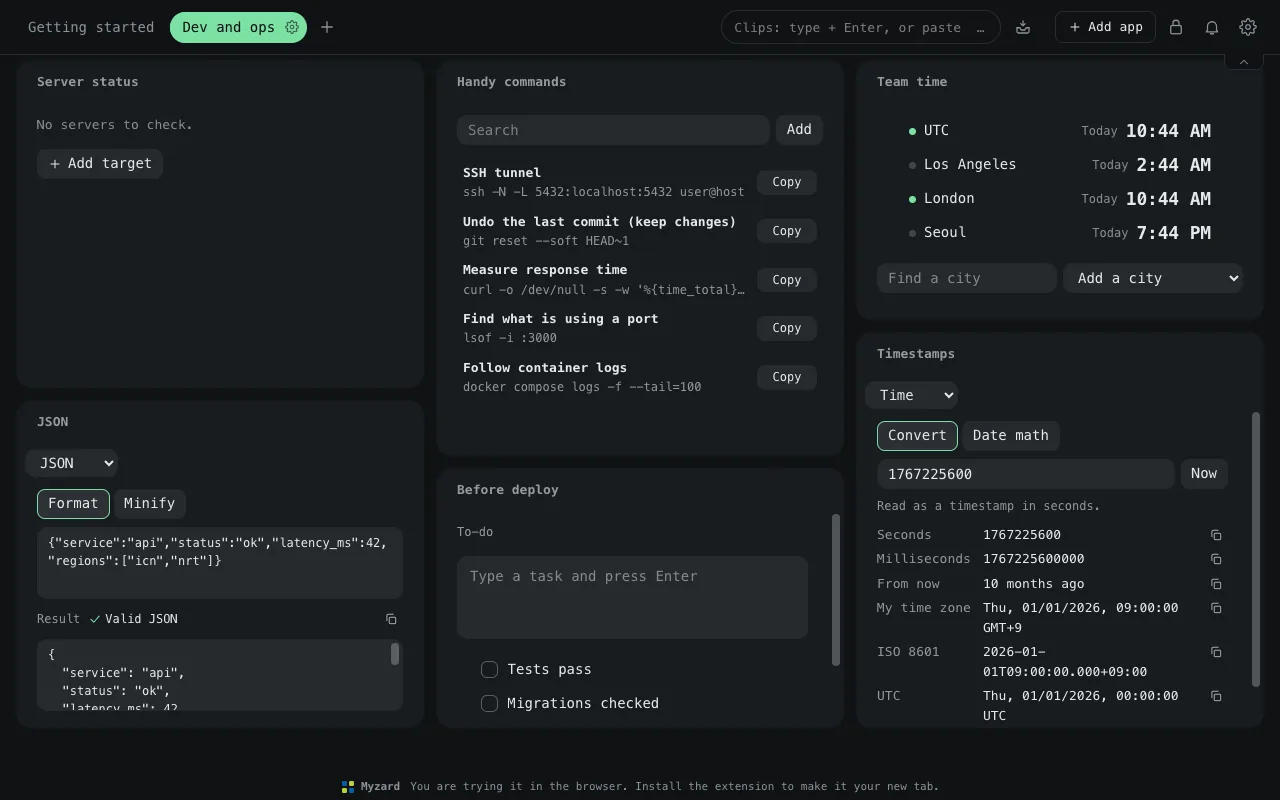
Paste a JWT, JSON or a timestamp and it decodes itself
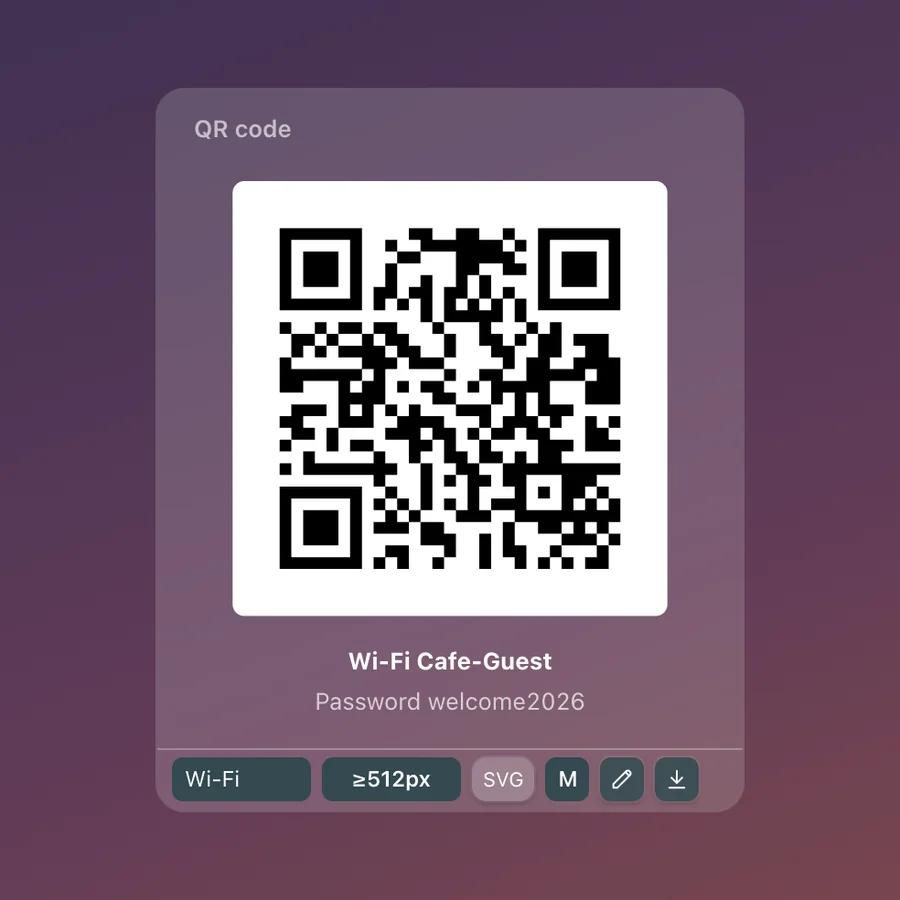
QR code
Make a Wi-Fi QR code and save it as a printable sign
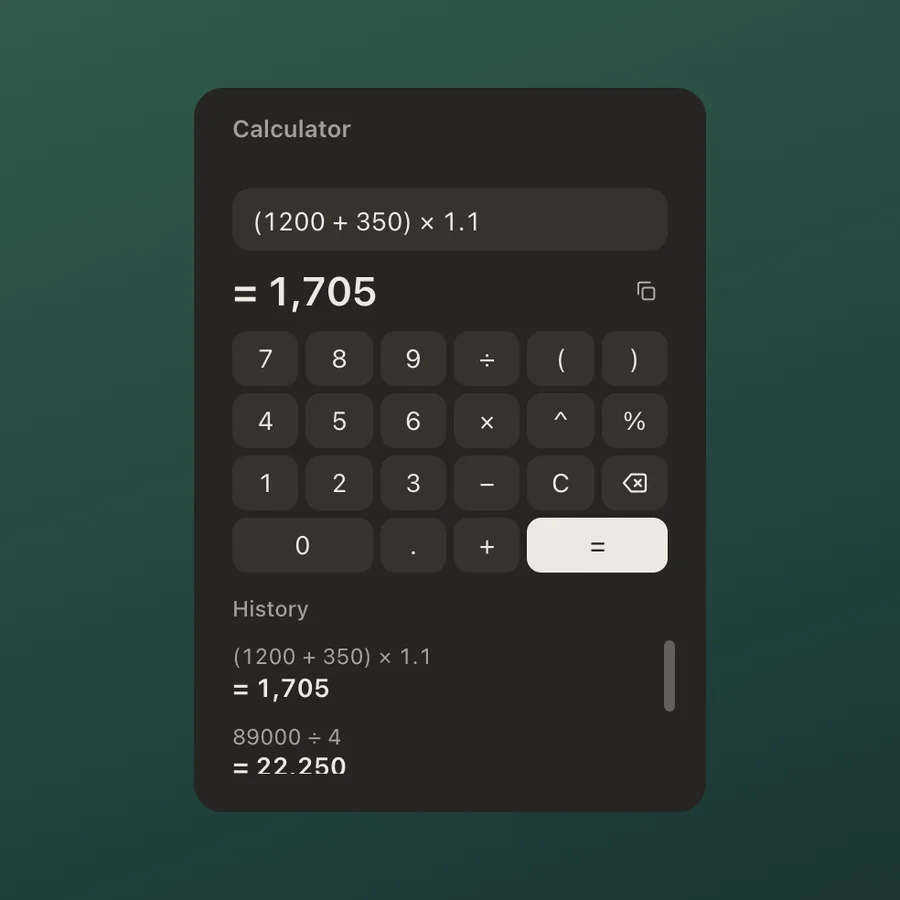
Calculator
Type the formula as is, with percentages and thousands separators
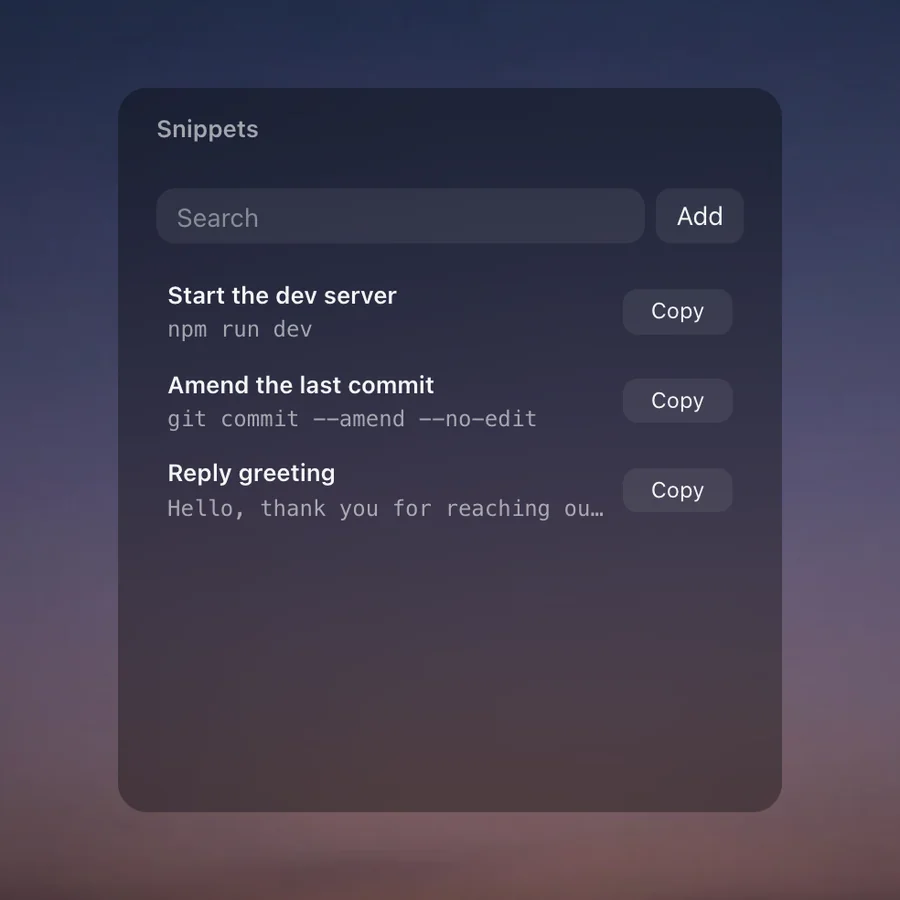
Snippets
Save the commands and phrases you reuse, copy them in one click
Search, translation, clocks, alarms, server checks and other apps are in the app list below.
Everyday tools, brought together
Free tools. One place. Your computer.
Tasks, notes, focus timers, translation, a calculator, dev tools, QR codes and world clocks. Spend less time signing up for tools or switching between sites. Add the same app more than once when you need another space.
Tab groups
Save sites by purpose, edit them and open them together
YouTube
Your chosen video, with always-on-top PIP
HTML
Paste HTML made with AI as a card; scripts run isolated, only when allowed
Website
Embed AI-built tools, adjust viewing width and auto reload
Clips
Paste or jot down text, links and images to keep
Today
To-dos with subtasks, day countdowns (D-Day)
Day schedule
One-line quick add, list and timeline, dated plans on the calendar
Dev tools
Paste and it decodes itself: JWT, JSON, Base64, URL, timestamps, hashes
QR code
Text or links, Wi-Fi access, contacts. Save as a printable sign
Up nextData apps such as the board and customer list are all built from one format, the app definition. The next steps are importing app definitions made with AI to add data apps of your own, then an app library and cross-device sync. Those three are still planned; embedding an external website is available now.
No blank-page feeling
Find a screen that fits your day.
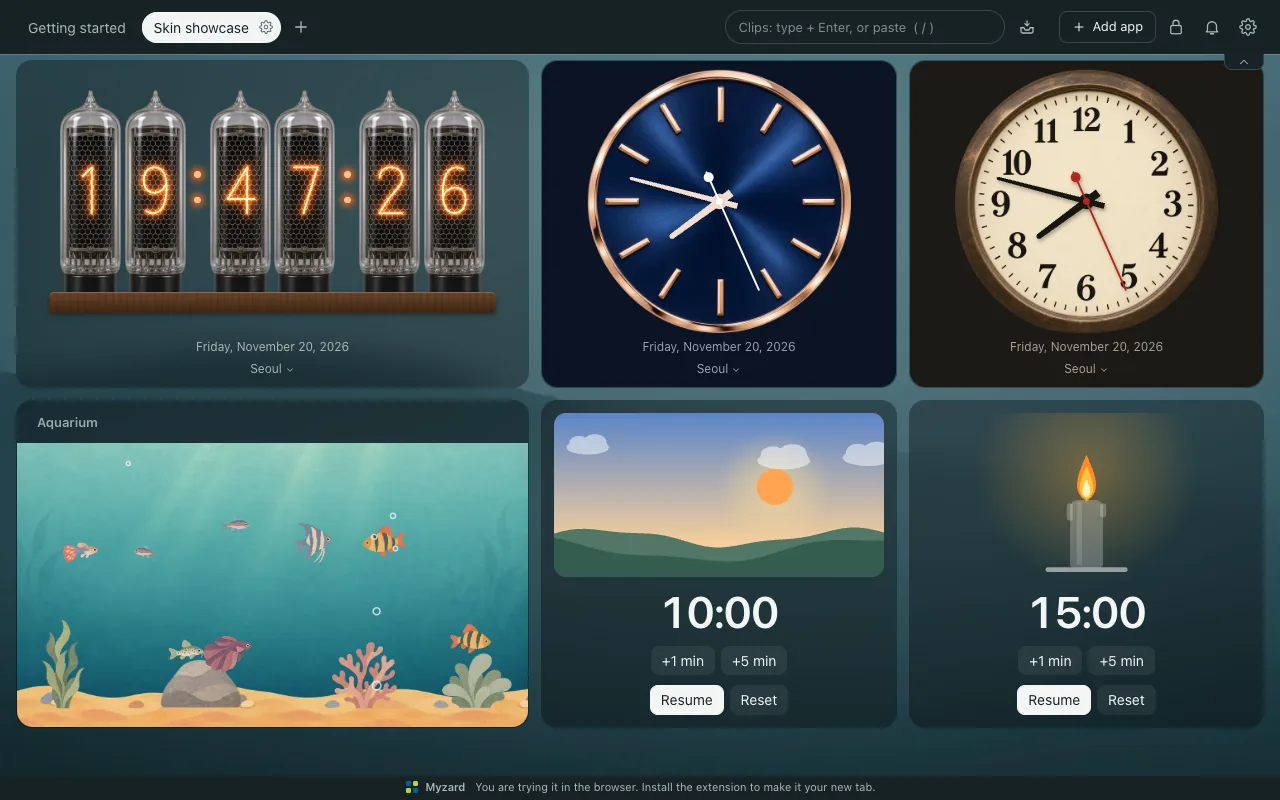
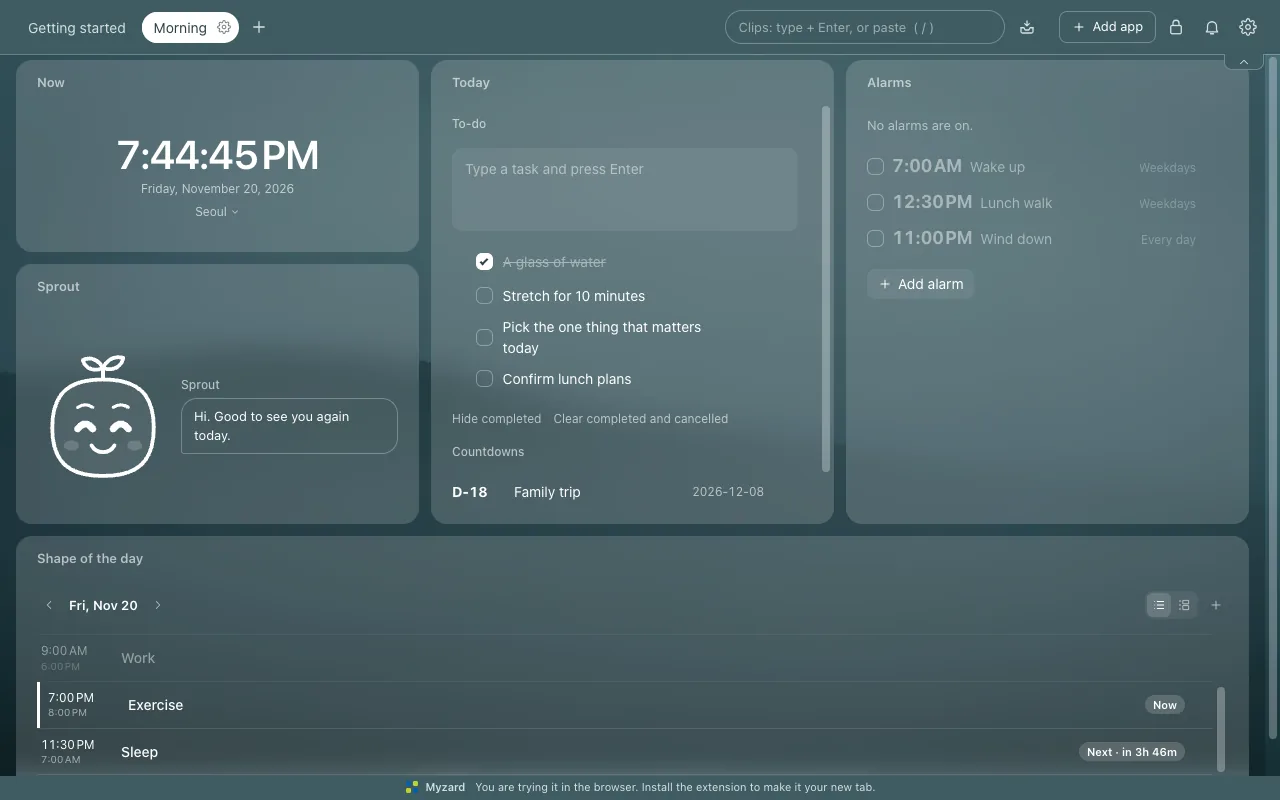
Start with a ready-made screen, then change the cards and layout to make it yours.
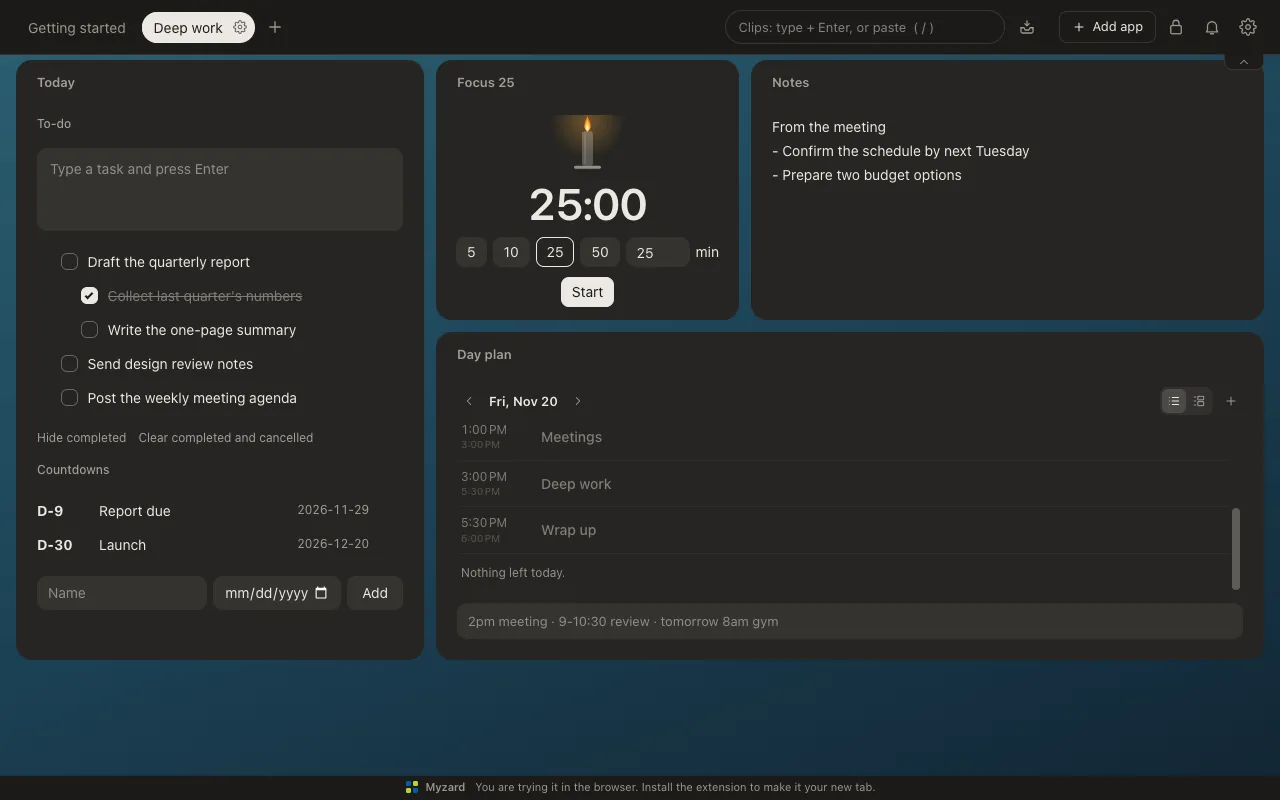
To-dos, a 25-minute timer, and the day plan on one screen.
Your notes, tasks, saved addresses and layouts stay in your browser. There is no Myzard account to create and no need to upload your workspace to Myzard servers.
No account, on your computer
Start right away with no sign-up or sign-in. Workspace records stay in the browser on your computer and are not uploaded to Myzard servers.
Back up on your terms
Export a backup to keep it safe, restore it, or move your workspace to another computer.
A way to go back
Recover from mistakes with Time Machine snapshots of text and settings, and a 30-day trash.
Permissions only when needed
Installing does not ask for your browsing history or for access to every site. Myzard asks for a permission only when you turn on the feature that needs it, such as saving open tabs, notifications or server checks.
Removing the extension deletes local data, so back up important content. Search, YouTube and server checks connect to external services or the addresses you register. Local storage is not encrypted storage.
Yes. The demo runs the same apps in a regular browser tab, and its data stays in that browser. Features such as saving open tabs and clipping the current page are available in the installed extension.
Are all these tools really free to use?
Yes. The Myzard built-in features shown here are free, with no Myzard ads or account required. Connected services such as YouTube and search providers have their own advertising, pricing and terms. We are preparing the Chrome Web Store release; you can try the browser demo now.
Can I view a card or YouTube with Chrome minimized?
Use Always on top on a supported card to keep a PIP window above other apps. It stays visible with Chrome minimized, but Chrome and the source tab or card window must remain open. Only one PIP window can be open at a time. YouTube playback also depends on whether the video allows embedding and on YouTube policies.
Can I duplicate a whole work screen?
Save a screen’s card layout and settings to My layouts, then pick it when you add a new screen to start from the same frame. Card content such as tasks and notes is not included. To bring content along, use Copy to another screen in the card menu in edit mode.
Can I add HTML or a site I built with AI?
Yes. Paste a single-file HTML into an HTML card, or add a site with a web address to a Website card. HTML card scripts run only after you allow them, in an isolated page, and external script files cannot load. Website cards show only sites that allow embedding, and the site itself controls sign-in and how its data is stored or transmitted. Myzard does not build or host the site for you.
Are server checks a 24/7 monitoring service?
These are periodic checks from your own computer while Chrome is running and your device is awake. The installed extension can check in the background with the new tab closed, but it cannot keep checking while your computer is off or asleep. Access permission is needed for each registered address; notifications are optional. TCP port checks require a relay server you operate.
Does it work without the internet?
Notes, to-dos, clocks and other local apps work offline in the installed extension. Search, websites, YouTube and server checks need a connection. Built-in translation requires supported desktop Chrome and language packs downloaded in advance.
Does it sync with another PC or a desktop app?
For now, you can export and restore a backup file. Automatic cross-device sync and a standalone desktop app are still planned. Card windows and always-on-top cards work while Chrome is running.
Which browsers can I use?
Myzard is built for desktop Chrome. Other browsers can display the demo, but features such as built-in translation and always-on-top windows depend on browser support.
Can I change the background?
Yes. Open Screen settings from the icon next to the screen name, or choose Change background in the settings menu, then pick a built-in background or upload your own image under Appearance. Each screen has its own background. Theme and light/dark mode are in Global settings.
Focus or a breather, starting in your next tab
Start with a screen that fits you.
Open your work screen when you need to focus, and a cozy one when you need a break.